31 Oct

Sony Bravia IPTV Canada setup is easier than a lot of viewers expect, especially because many newer Sony Bravia TVs run Google TV or Android TV.
If you are exploring IPTV Canada and want a simple way to watch on the big screen, Smartele IPTV Canada can fit naturally into your home entertainment setup without turning your living room into a tech project.
The good news is that Sony Bravia TVs are generally friendly to streaming apps, remote controls, Wi-Fi networks, and common Canadian viewing habits. You do not need to be a technician to understand your options.
This guide walks through the practical side: checking your Sony TV platform, choosing an IPTV player, entering your details correctly, improving playback, and avoiding common mistakes.
Because every household is different, we will keep the advice flexible. A condo in downtown Toronto, a bungalow in Winnipeg, and a family home in rural New Brunswick may all need slightly different network choices, but the core setup steps are usually the same.
How do you set up Sony Bravia IPTV Canada?
- Confirm whether your Sony Bravia uses Google TV, Android TV, or an older Sony smart TV platform.
- Connect the TV to a stable home internet connection, preferably 5 GHz Wi-Fi or Ethernet where available.
- Open the Google Play Store on compatible Sony Bravia models.
- Search for a reputable IPTV player app that supports your provider’s login method, such as playlist, Xtream-style login, or portal details.
- Install the app and open it on your Sony Bravia TV.
- Enter the IPTV account details supplied by your provider carefully, checking every character.
- Allow the app to load your live TV, guide, or on-demand categories if supported.
- Test a few channels or streams, then adjust picture, audio, and network settings if needed.
That is the quick version. In most cases, the setup takes only a few minutes once you know which app you are using and where your login details are. The part that slows people down is usually not the TV itself; it is choosing the right player app and typing the details correctly with a TV remote.
It helps to think of IPTV in two parts. First, there is the IPTV service account, which provides access credentials and organizes the viewing experience. Second, there is the player app, which is the software you install on the Sony Bravia to display the service on your screen. The app is not always the service, and the service is not always the app.
For Canadian viewers, this distinction matters because smart TV app stores vary by device, region, and software version. A friend with a Samsung TV may use one app, someone with an LG TV may use another, and a Sony Bravia owner may have different choices again. If you are comparing across brands, our guide to IPTV on Samsung Tizen TVs in Canada shows how different smart TV systems can affect setup.
- Newer Sony Bravia models are often easier to set up.
- Google TV models usually have strong app support.
- Older models may need an external streaming device.
- Stable internet matters more than raw TV specifications.
- Correct login details prevent most setup frustration.
Know your Sony Bravia IPTV Canada platform first
Before downloading anything, confirm what kind of Sony Bravia smart TV you have. Sony has sold Bravia televisions with different smart platforms over the years. Many recent models use Google TV. Some slightly older models use Android TV. Older Bravia TVs may have a more limited Sony smart interface that does not support the same app selection.
The platform affects what you can install. If your TV has Google TV or Android TV, you typically use the Google Play Store. This is a major advantage because many IPTV player apps are built for Android-based television systems. If your Sony Bravia does not have Google Play Store access, the setup may be more limited and an external device can be the cleaner solution.
To check, press the Home button on your remote. Look for signs such as Google TV, the Google Play Store, Google Assistant, or an Android-style settings menu. You can also open Settings and look for About, System, or Device Preferences. The exact wording changes between models, but you are looking for the operating system and software version.
Here are simple clues that help:
- If the home screen says Google TV, you have a newer Google TV interface.
- If you see Google Play Store, app installation is usually straightforward.
- If the menu says Android TV, you still likely have good IPTV app options.
- If the app store is very small, your model may be older or limited.
- If apps are slow or missing, a Fire TV Stick or Google TV device may help.
Canadian households often keep TVs for many years, especially when the panel still looks great. A 2017 or 2018 Sony Bravia may still have a beautiful picture, but its app support may feel dated compared with a 2026 streaming device. That does not mean you need to replace the TV. It simply means the smartest setup may be to use the screen for picture quality and let a newer streaming device handle the apps.
If you are comparing Sony with other smart TV platforms, it is useful to understand how app stores differ. Our article on LG webOS IPTV compatible players in Canada explains why app availability can change from one TV brand to another, even when the viewing goal is the same.
Choose an IPTV player app for Sony Bravia IPTV Canada
On a compatible Sony Bravia, the IPTV player app is the bridge between your subscription details and what appears on your screen. A good player should be easy to navigate with a TV remote, should display categories clearly, and should support the login format your provider gives you.
Different IPTV services use different setup methods. Some provide an M3U playlist link. Some provide an Xtream-style username, password, and server URL. Some provide portal or MAC-based instructions. Your job is not to guess which one is best; it is to choose an app that supports the method you have been given.
When searching the Google Play Store, look for practical signs of a well-designed app:
- Clear TV remote navigation.
- Support for electronic programme guide, often called EPG.
- Favourites or recently watched sections.
- Parental controls where needed.
- Search that works from the couch.
- Regular updates from the developer.
A lot of viewers focus only on the app name, but comfort matters. If the interface feels confusing, the whole household may avoid using it. For families, seniors, and shared living rooms, a simple menu can be more valuable than advanced features hidden under layers of settings.
It is also worth checking whether the app requires a separate one-time activation or in-app purchase. Player apps and IPTV subscriptions are not always bundled together. Paying to unlock a player app does not necessarily pay for content access. This is one of the most common points of confusion for new IPTV users.
For broader app-selection advice across television brands, you can read our guide to selecting IPTV apps for smart TVs in Canada. It covers the same kind of decision-making Sony Bravia owners face, including compatibility, ease of use, and living-room practicality.
In Canada, many viewers also compare IPTV with familiar apps such as CBC Gem, CTV, Global TV, Citytv, TSN, Sportsnet, RDS, TVA Sports, Netflix, Prime Video, and YouTube. These services each have their own apps, accounts, rights, and availability rules. Smartele IPTV Canada is not being described here as affiliated with those broadcasters or services; the point is simply that Canadian viewers are used to switching between many sources on one smart TV.
Enter your Sony Bravia IPTV setup details carefully
Once the player app is installed, the most important step is entering your setup details correctly. This is where many perfectly good setups fail. A single missing slash in a server URL, a space at the end of a username, or a mistyped password can stop everything from loading.
If your provider sends you information by email, open it on your phone while you sit in front of the TV. Type slowly. If the app allows copying from a phone companion app, QR code, or web portal, that may be easier. If not, take your time with the remote. Uppercase and lowercase letters can matter.
Common details you may be asked to enter include:
- Username.
- Password.
- Server URL or portal URL.
- M3U playlist link.
- EPG guide link.
- Device name or profile name.
Give the profile a clear name, such as “Living Room Sony” or “Sony Bravia Main TV.” This is helpful if you later add another device in the basement, bedroom, cottage, or student apartment. Clear labels reduce confusion when troubleshooting.
After saving the details, let the app fully load. Some apps need a minute to fetch categories, guide data, or logos. Do not assume something is broken after three seconds. If nothing loads after a reasonable wait, restart the app and check your details again.
If your app displays an EPG, remember that guide data can take longer to populate than the channels or categories themselves. You may see streams first and programme listings later. In most cases, patience and a restart solve this without changing the TV settings.
For homes with multiple viewers, create favourites early. Put everyday channels, family-friendly sections, or preferred sports categories somewhere easy to reach. Whether someone is looking for local news, hockey discussion, kids’ programming, movies, or weekend entertainment, favourites make the TV feel less like a computer and more like a familiar living-room device.
Internet tips for smoother Sony Bravia IPTV Canada viewing
IPTV depends on your home internet connection. Your Sony Bravia can have an excellent screen, a good processor, and a clean app interface, but if the Wi-Fi is weak at the TV location, streaming may still buffer or drop quality.
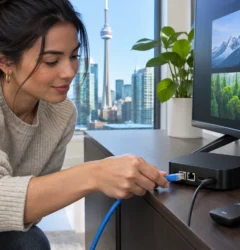
The best connection is often Ethernet, which means a cable from your router or network switch to the TV. Ethernet is not glamorous, but it is steady. If your router is near the TV stand, use a cable. If your router is on another floor, good Wi-Fi can still work, but placement becomes more important.
For Wi-Fi, 5 GHz is usually better for streaming if the TV is close enough to the router. It can be faster and less crowded than 2.4 GHz. However, 2.4 GHz travels farther through walls. In a larger Canadian home with thick walls, a finished basement, or a detached router location, the “best” network may be the one that gives the TV the most stable signal, not simply the one with the bigger number.
Try these practical network checks:
- Restart the modem and router before blaming the app.
- Move the router higher and away from metal objects.
- Keep the TV away from crowded power bars when possible.
- Test both 5 GHz and 2.4 GHz Wi-Fi if available.
- Use Ethernet for the main living-room TV if practical.
- Pause large downloads during important viewing.
Canadian households often stream on many devices at once. Someone may be watching hockey in the family room, another person may be on a video call, a teenager may be gaming, and a phone may be backing up photos. This shared usage affects IPTV just like it affects any other streaming service.
If buffering happens mostly at peak evening times, test at another time of day. If the problem disappears in the morning but returns at night, the issue may be network congestion inside or outside the home. If buffering happens on only one app or one type of stream, then app settings or provider-side factors may be involved.
Do not overlook the Sony TV software itself. Check for system updates under Settings. Updates can improve app compatibility, security, and general performance. After a major update, restart the TV fully rather than just pressing the power button once. Some Sony Bravia models stay in a quick standby mode unless you choose Restart from the settings menu.
Sony Bravia IPTV vs Fire TV Stick or external devices
Many Canadians ask whether it is better to install IPTV directly on the Sony Bravia or use an external device such as a Fire TV Stick, Chromecast with Google TV, Android TV box, or similar streamer. There is no single answer for every home. The better choice depends on your TV model, app availability, remote preference, and how long you plan to keep the setup.
Direct installation on a Google TV or Android TV Sony Bravia is clean and simple. You use one remote, one home screen, and fewer HDMI ports. For a newer Bravia, this is often the first option to try. It keeps the living room tidy and avoids another device hanging behind the TV.
An external device may be better if your Sony Bravia is older, slow, missing apps, or no longer receiving useful updates. It can also help if you prefer the Fire TV interface or want the same setup on several TVs in the house. A Fire TV Stick is popular in Canada because it is widely available, portable, and easy to move between rooms or take to a cottage, provided your service and account terms allow that kind of use.
Here is a simple comparison:
- Direct Sony app setup: fewer devices and fewer cables.
- Direct Sony app setup: best when the TV is newer and responsive.
- External streamer: helpful when app support is limited.
- External streamer: easier to replace than a whole TV.
- External streamer: useful for keeping the same interface on multiple TVs.
- External streamer: may offer broader app flexibility depending on the device.
If you are deciding between smart TV platforms, our comparison of Google TV vs Roku TV for IPTV in Canada is especially relevant. Sony Bravia owners with Google TV are in a different app situation than many Roku TV owners, and understanding that difference can save time before you buy or change devices.
There is also a comfort factor. Some viewers simply prefer the Sony remote and Google TV layout. Others like the simplicity of a separate streaming stick that can be reset, replaced, or upgraded without touching the TV. In most cases, the right choice is the one your household will use confidently.
For cottages and secondary TVs, an external device can be appealing because you can maintain a familiar setup even when the television brand changes. For a main living-room Sony Bravia, direct installation is often attractive if the TV remains fast and compatible.
Picture, sound, and remote settings that help
After the IPTV app loads, spend a few minutes making the Sony Bravia comfortable to watch. Many people stop after the first successful stream, but small settings can make a big difference in daily use.
Start with picture mode. Sony TVs often include modes such as Standard, Cinema, Custom, Vivid, Game, or Sports. Vivid can look bright in a store, but at home it may be harsh, especially at night. Cinema or Custom modes often look more natural for movies and shows. Sports settings may help with fast motion, although too much motion smoothing can make some content look unusual.
Try these picture adjustments gently:
- Reduce overly bright Vivid mode for evening viewing.
- Use Cinema or Custom for a more natural image.
- Adjust motion settings if sports look blurry or too smooth.
- Check aspect ratio if the image looks stretched.
- Turn on subtitles only where needed.
- Match brightness to the room lighting.
For sound, the built-in TV speakers may be fine for casual viewing, but dialogue can be clearer through a soundbar. If you use a soundbar, test lip sync. A small delay between voices and mouth movement can make any service feel frustrating. Sony TVs often include audio sync settings, and soundbars may have their own adjustments too.
Remote control shortcuts can also improve the experience. Add the IPTV player app to the top row of your Sony home screen if possible. This prevents family members from digging through menus. If your remote has a microphone button, voice search may help find apps, although searching inside a specific IPTV app depends on that app’s own features.
For households with children, consider app-level parental controls and TV-level restrictions. Not every player app handles restrictions the same way, so explore the settings before handing over the remote. It is easier to set expectations early than to reorganize everything later.
If you use other Canadian streaming apps alongside IPTV, keep the home screen tidy. Place everyday apps near the front and remove or hide apps you never use. A clean home screen helps everyone in the household, especially guests, grandparents, and kids.
Common Mistakes to Avoid
The most common Sony Bravia IPTV Canada mistakes are small, fixable, and easy to avoid once you know what to watch for. The good news is that most problems do not mean your TV is broken.
A major mistake is downloading an IPTV player before checking which login method your provider supports. If you have a portal login and the app only supports M3U playlists, you may be stuck before you start. Always match the app to the credentials.
Another mistake is assuming the app is the subscription. Many IPTV players are simply players. They do not include channels, guide data, or content by themselves. If an app asks for playlist or server details, it needs information from your IPTV provider.
Avoid these common setup issues:
- Typing the server URL with missing letters or extra spaces.
- Using an app that does not support your login format.
- Ignoring TV software updates for months.
- Using weak Wi-Fi while blaming the IPTV app.
- Forgetting that guide data may take time to load.
- Installing too many similar apps and confusing the household.
It is also a mistake to judge the entire setup from one stream. Test several categories and a few different times of day. One problematic stream does not always represent the full service, app, TV, or network.
Do not overload the TV with unnecessary apps. Smart TVs have limited storage compared with phones and computers. If your Sony Bravia is older, too many unused apps can make the interface feel slower. Remove what you do not use.
Finally, avoid sharing account details casually. Treat IPTV credentials like any other subscription login. Keep them private, follow the terms of your provider, and do not post screenshots of account pages in online forums when asking for help.
Troubleshooting Sony Bravia IPTV Canada problems
When something goes wrong, troubleshoot in a calm order. Randomly changing every setting can create new problems. Start with the simplest checks and move gradually toward the more detailed ones.
If the app will not open, restart the TV. On many Sony Bravia models, holding the power button or choosing Restart from the settings menu performs a fuller restart than simply turning the screen off. After restarting, open the app again and wait.
If the app opens but nothing loads, check your account details. Re-enter the username, password, and URL if needed. Pay attention to uppercase letters, punctuation, and spaces. If you copied the URL from an email, make sure no line break or hidden space was included.
If streams load but buffer, test your internet connection near the TV. Open another streaming app and see whether it plays smoothly. If everything buffers, the problem is likely your network. If only the IPTV app buffers, check app settings, update the app, and test different categories.
Use this simple troubleshooting order:
- Restart the Sony Bravia TV.
- Restart your modem and router.
- Confirm your IPTV login details.
- Update the player app if an update is available.
- Update the Sony TV system software.
- Try Ethernet or a stronger Wi-Fi signal.
- Contact support if account access still fails.
If the picture freezes but audio continues, or audio plays without video, the issue may involve the app’s player engine or format handling. Some apps allow you to switch between internal and external player options, or between hardware and software decoding. Use these settings carefully, changing one thing at a time so you know what helped.
If the TV feels generally slow, clear app cache where available, uninstall apps you do not use, and restart the device. Older TVs may struggle with heavier modern apps. In that case, an external streamer can be a practical and affordable workaround compared with replacing the television.
Owners of less common smart TV platforms may face different limits. For example, the choices on Hisense Vidaa are not the same as on Sony Google TV. If you are helping family members with another television brand, our article on Hisense Vidaa IPTV options in Canada explains why some TVs need different setup paths.
Remember that outages and temporary service issues can happen with any internet-based viewing service. Before changing your whole setup, check whether the issue affects multiple devices or only the Sony Bravia. If the same account works on another compatible device but not on the TV, focus on the app or TV. If it fails everywhere, focus on account, provider, or internet access.
Final Thoughts
Sony Bravia IPTV Canada setup can be very straightforward when you approach it in the right order: identify your TV platform, choose a compatible player, enter your details carefully, and make sure your home network is stable. For many Canadian viewers, a Sony Bravia with Google TV or Android TV offers a comfortable living-room experience without needing extra equipment. For older models, a streaming device can keep the same beautiful screen useful for years longer. If you want a calm, practical way to explore IPTV on your Sony TV, Smartele IPTV Canada is here as a helpful option to consider when you are ready.
FAQ
Can I install IPTV directly on a Sony Bravia TV in Canada?
In most cases, yes, if your Sony Bravia runs Google TV or Android TV and has access to the Google Play Store. You can search for a compatible IPTV player app, install it, and enter the details provided by your IPTV service. Older Sony Bravia models may have fewer app choices and may work better with an external streaming device.
Do I need a Fire TV Stick for Sony Bravia IPTV Canada?
You do not always need one. A newer Sony Bravia with Google TV may support suitable IPTV player apps directly. A Fire TV Stick or similar device can be useful if your TV is older, slow, missing the app you want, or if you prefer using the same streaming interface on multiple TVs.
Why is my IPTV buffering on my Sony Bravia?
Buffering is often related to Wi-Fi strength, home network congestion, router placement, or temporary internet issues. Restart your TV and router, test another streaming app, try Ethernet if possible, and make sure your player app and Sony TV software are updated. If only one stream has trouble, the issue may not be your TV.
Which IPTV app is best for Sony Bravia in Canada?
The best app is the one that supports your provider’s login format and feels easy to use with your Sony remote. Look for stable updates, clear menus, EPG support, favourites, and good TV-screen navigation. App availability can vary by model, region, and software version.
Is Sony Bravia better than other smart TVs for IPTV?
Sony Bravia TVs with Google TV or Android TV are often convenient for IPTV because they usually have strong app support through the Google Play Store. However, the best choice depends on your model, app needs, network, and household preferences. Samsung, LG, Roku, Hisense, and external devices all have different strengths and limitations.