30 Oct
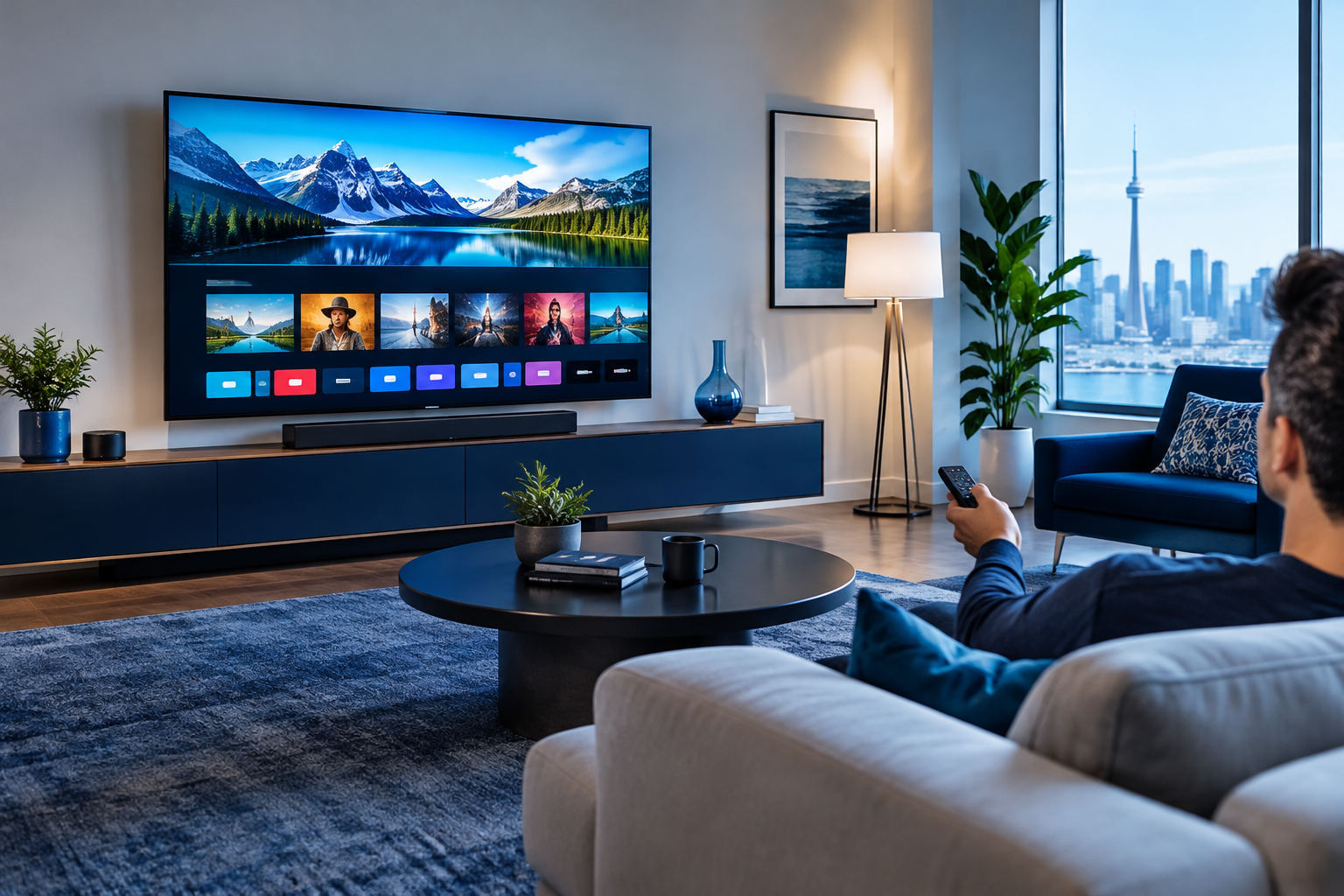
Hisense Vidaa IPTV Canada options can feel a little confusing at first, especially if you bought a Hisense TV expecting it to work exactly like a Google TV, Samsung TV, or LG TV.
The good news is that you still have practical ways to enjoy IPTV on a Hisense Vidaa TV in Canada. Smartele IPTV Canada helps everyday viewers understand those choices without the tech headaches.
If you are comparing devices, apps, and setup paths, this Canadian IPTV guide can help you think through what fits your home, your internet connection, and the way your family watches TV.
Vidaa is simple and quick for many built-in smart TV features, but IPTV app support can vary. That is why a lot of viewers end up choosing between a built-in app, an external streaming device, or casting from a phone.
In this guide, we will walk through your main options, what to check before you start, the common mistakes to avoid, and how to make a Hisense Vidaa TV easier to use for Canadian IPTV viewing.
What Are Your Hisense Vidaa IPTV Canada Options?
- Check the Vidaa app store on your Hisense TV to see whether a compatible IPTV player is available in Canada.
- Confirm how your IPTV provider delivers access, such as M3U playlist, Xtream Codes-style login, portal URL, or another supported method.
- Install and test the app with your credentials, then verify guide loading, playback, audio, subtitles, and remote control navigation.
- Use an external streaming device like a Fire TV Stick, Android TV box, or Google TV device if the Vidaa app selection feels limited.
- Consider casting or screen mirroring from a phone or tablet for occasional use, understanding that it is usually less convenient for daily viewing.
- Improve your home network with stable Wi-Fi, Ethernet where possible, and a properly placed router to reduce buffering.
- Keep your setup simple so anyone in the home can open the app, change channels, and troubleshoot basic issues.
For most Canadian households, the easiest long-term choice is either a compatible app directly on Vidaa or an external streaming device connected by HDMI. The right answer depends on your Hisense model, your IPTV provider’s supported player options, and how comfortable you are using extra devices.
It is also important to understand that “IPTV” is not one single app. It is a way of delivering television-style streams over the internet. The viewing experience depends on several parts working together: your subscription, the player app, your TV or streaming device, and your home internet.
If one part is weak, the whole experience can feel frustrating. For example, your subscription may be fine, but the app may not be available on Vidaa. Or the app may install correctly, but your Wi-Fi signal may be weak in the basement rec room. This guide is designed to help you separate those issues calmly.
Understanding Vidaa on Hisense TVs in Canada
Vidaa is the smart TV operating system used on many Hisense TVs. It is designed to be clean, quick, and straightforward. You can open popular streaming services, adjust settings, connect to Wi-Fi, and use built-in apps without needing a separate box.
However, Vidaa is not the same as Android TV, Google TV, Fire TV, Samsung Tizen, LG webOS, or Roku TV. Each smart TV platform has its own app store, rules, app availability, and update schedule. That difference matters a lot when you are looking for IPTV player apps.
In Canada, Hisense sells TVs with different smart platforms depending on model, year, retailer, and screen size. Some Hisense TVs run Vidaa, while others may run Google TV or Roku TV. Before searching for apps, it helps to confirm what you actually have.
- Press the Home button on your remote.
- Look for Vidaa branding on the home screen.
- Open the TV settings and check “About” or “System.”
- Search the app store name and layout.
- Check the model number on the back of the TV or receipt.
If you discover that your Hisense TV uses Google TV instead of Vidaa, your app choices may be different. For a broader comparison, Smartele IPTV Canada has a related guide on how Google TV and Roku TV handle IPTV differently in Canada.
The key thing to remember is that Vidaa can be a perfectly usable smart TV system, but it may not offer the same IPTV app flexibility that some Android-based devices provide. That does not mean your TV is useless for IPTV. It simply means you may need to choose the right path.
Option 1: Use a Vidaa-Compatible IPTV App
The cleanest setup is using an IPTV player app directly on your Hisense Vidaa TV. This keeps everything on one remote, one home screen, and one device. For many everyday viewers, that simplicity is appealing.
Start by opening the Vidaa app store on your TV and searching for IPTV-related player apps. The exact app selection can vary by country, TV model, and software version. Some apps may support playlist-based viewing, while others may require a specific login format.
Before you spend time setting up an app, check whether it supports the login details your provider gives you. Common access types include:
- M3U playlist URL
- EPG or TV guide URL
- Xtream Codes-style username and password
- Portal or MAC-based access
- App-specific activation codes
Do not assume every IPTV app supports every format. This is one of the biggest reasons a setup fails. An app might look right in the store but still be incompatible with your provider’s login method.
If the app is compatible, take your time entering details. Playlist links can be long, and one wrong character can stop everything from loading. If possible, use a remote control app, copy-and-paste feature, or the TV’s mobile companion tools if available.
Once the app loads, test more than one category. Open live channels, check the TV guide, try a few different types of programming, and see how the remote behaves. Canadian viewers often care about easy access to news, sports, family programming, and French-language content, so test the parts of the interface you will actually use.
You might be thinking about familiar Canadian channel brands such as CBC, CTV, Global, Citytv, TSN, Sportsnet, RDS, or TVA Sports. Availability depends on your IPTV provider, location, rights, and package details. This article does not claim that Smartele IPTV Canada or any specific app carries those channels. Always review your service details carefully.
Direct Vidaa app setups are best for viewers who want fewer devices and a simple living room arrangement. They are less ideal if you like trying different apps, need advanced player settings, or want the widest compatibility.
Option 2: Add a Fire TV Stick or Streaming Box
If Vidaa does not have the IPTV player you want, an external streaming device is often the most practical workaround. A Fire TV Stick, Android TV box, or Google TV device plugs into your Hisense TV’s HDMI port and gives you a separate app ecosystem.
This option is popular in Canada because it avoids being locked into the Vidaa app store. You still use the Hisense screen, but the streaming device handles the apps. For many households, this is the easiest way to get better IPTV player compatibility without replacing the TV.
A Fire TV Stick is a common choice because it is compact, affordable, widely available at Canadian retailers, and easy to move between rooms. Google TV devices are also popular, especially for viewers who already use Google accounts, Android phones, or the Google Play ecosystem.
External devices can offer several advantages:
- More IPTV player app options
- Frequent app updates on supported platforms
- Better remote control layouts for some apps
- Easier replacement if the device becomes outdated
- Less dependence on the TV’s built-in app store
- Useful portability for cottages, apartments, or guest rooms
The trade-off is that you now have another remote, another home screen, and another device to update. In most cases, that is a small price to pay for better compatibility, but it depends on your comfort level.
If you are deciding between built-in smart TV apps and external streaming devices, you may also find the broader Canadian guide to selecting IPTV apps for smart TVs helpful. It explains how app choice can affect usability across different TV brands.
When setting up an external device, plug it into a reliable HDMI port, connect it to strong Wi-Fi or Ethernet if supported, and install only the apps you genuinely need. A simple home screen is easier for everyone in the household.
For families, seniors, or shared homes, label the remote or set the streaming device as the default input. That way, turning on the TV does not become a guessing game. Small setup decisions make a big difference in daily comfort.
Option 3: Cast or Mirror From a Mobile Device
Casting or screen mirroring can work as a backup option for Hisense Vidaa IPTV Canada setups, but it is usually not the best everyday solution. It depends heavily on your phone, tablet, app, Wi-Fi network, and the casting features supported by your TV.
Some viewers like casting because it feels quick. You open an app on your phone, send the video to the TV, and start watching. This can be handy if you only watch occasionally or want to test a service before committing to a more permanent setup.
However, casting can introduce annoyances. Your phone may need to stay awake, notifications may interrupt, battery life may drop, and the stream may stop if the phone leaves the network. Remote control navigation is also less natural than using a dedicated TV app.
Screen mirroring is even more dependent on your device and network. It may show your entire phone screen on the TV, which can feel less polished than a proper IPTV player. Picture quality and audio sync may also vary.
Casting may make sense if you:
- Watch IPTV only once in a while
- Are testing your login details
- Need a temporary solution during travel
- Do not want to buy extra hardware yet
- Are comfortable controlling playback from a phone
For regular family viewing, especially during sports, news, or evening entertainment, a dedicated app or external streaming device is usually more relaxing. A lot of viewers want to sit down, pick up the remote, and watch without thinking about phone battery or casting interruptions.
Hisense Vidaa IPTV Canada vs Other Smart TVs
When comparing Hisense Vidaa IPTV Canada options against other smart TV platforms, the biggest difference is app flexibility. Vidaa is straightforward, but it may have fewer IPTV player choices than platforms with larger app ecosystems.
Samsung uses Tizen, LG uses webOS, Roku TVs use Roku OS, and many newer TVs use Google TV. Each has strengths and limitations. The “best” platform depends on what apps are available, how often they are updated, and how well they support your provider’s login format.
Samsung Tizen TVs are popular in Canadian homes, but IPTV setup can still depend on app availability and login support. If you have another TV in the home, this Samsung Tizen IPTV setup guide for Canada explains how that platform compares in practical terms.
LG webOS is another common option. Like Vidaa, it is not Android-based, so app selection needs to be checked carefully. For LG owners, Smartele IPTV Canada has a separate article on choosing compatible IPTV players on LG webOS in Canada.
Here is a simple comparison for everyday viewers:
- Vidaa: Simple interface, but app selection may be more limited.
- Google TV: Often broader app support and familiar Android-style options.
- Roku TV: Very simple, but app rules can be restrictive for some IPTV uses.
- Samsung Tizen: Popular and polished, with app support varying by region.
- LG webOS: Clean interface, but compatibility depends on available players.
- Fire TV Stick: Flexible external option that works with many HDMI TVs.
The practical takeaway is simple: do not judge IPTV compatibility by the TV brand alone. Judge it by the operating system, app store, provider login type, and your willingness to use an external device.
If your Hisense Vidaa TV is already mounted, looks great, and works well for regular streaming, there is no need to replace it just because the IPTV app selection is limited. An HDMI streaming device can often extend its usefulness for years.
Choosing an IPTV Player for Canadian Viewing Habits
An IPTV player is the app that organizes and plays your IPTV service. It is not the same as the IPTV service itself. Think of it like a media player: it needs compatible login details, a stable device, and a usable interface.
Canadian households often have specific viewing needs. You may want English and French interface options, easy sports navigation, parental controls, a reliable electronic program guide, or quick access to local news. The right player should match those habits.
Before choosing an IPTV player for a Hisense Vidaa TV, ask yourself these questions:
- Does it support my provider’s login method?
- Is it available in the Canadian Vidaa app store?
- Does the TV guide load clearly?
- Can favourites be organized easily?
- Is the remote control experience comfortable?
- Does it support subtitles or audio options I need?
- Can other family members use it without help?
Do not overlook the favourites feature. With IPTV, lists can become long, and nobody wants to scroll endlessly. A good favourites list can make the experience feel closer to traditional cable, where your most-watched channels are easy to find.
Sports viewers should test live playback carefully. Fast-moving content can reveal buffering, frame rate, or audio sync issues more quickly than slower programming. If you enjoy hockey, CFL, soccer, basketball, curling, or combat sports, test during the times you actually plan to watch.
Families may care more about profiles, parental controls, and simple categories. Seniors may care about large text, predictable remote buttons, and an app that opens quickly. There is no single perfect player for everyone, so choose based on real household use.
The good news is that you can usually change your player setup if the first option is not comfortable. IPTV viewing is not like drilling holes in the wall. You can test, adjust, and improve your setup over time.
Setup Checklist for Hisense Vidaa IPTV Canada
Before you begin setting up IPTV on a Hisense Vidaa TV in Canada, it helps to gather everything in one place. This reduces frustration and makes it easier to see where a problem is coming from if something does not work.
Use this checklist before installing apps or buying extra hardware:
- Your Hisense TV model number
- Confirmation that the TV runs Vidaa
- Your Wi-Fi name and password
- Your IPTV login details from your provider
- The required login format, such as M3U or username/password
- A backup email or note with exact URLs
- An HDMI streaming device if needed
Next, update your TV software. Smart TV updates can improve app stability, security, and compatibility. On most TVs, you can check this through Settings, System, Support, or About. The wording may vary depending on the model.
Then check your internet connection. IPTV does not need a complicated home network, but it does need stability. If your TV is far from the router, Wi-Fi may be weaker than expected. Walls, floors, appliances, and neighbouring networks can all affect performance.
If possible, use Ethernet. A wired connection is often more consistent than Wi-Fi, especially for basement TVs, condos with crowded wireless networks, or busy households where several people stream at once.
After installing the app, enter your credentials carefully. If you are using a playlist URL, pay attention to capital letters, punctuation, and hidden spaces. If you are using a username and password, confirm whether the app also requires a server URL.
Once loaded, customize the app for comfort:
- Create a favourites list.
- Adjust time zone settings if the guide is off.
- Change display size if text is hard to read.
- Test subtitles and audio tracks if needed.
- Remove unused categories if the app allows it.
- Teach everyone in the home how to reopen the app.
A careful setup takes a little longer at the beginning, but it prevents a lot of late-night frustration later. In most cases, the goal is not to make the setup fancy. The goal is to make it predictable.
Common Mistakes to Avoid
A lot of viewers run into problems not because IPTV is impossible on Vidaa, but because one small assumption was wrong. Avoiding these common mistakes can save you time and stress.
- Assuming all Hisense TVs are the same: Some run Vidaa, while others run Google TV or Roku TV.
- Installing the first app you see: The app must support your provider’s login format.
- Typing long URLs with the remote too quickly: One wrong character can stop a playlist from loading.
- Ignoring TV software updates: Outdated firmware may affect app performance.
- Using weak Wi-Fi: Buffering is often a network issue, not always an IPTV issue.
- Forgetting about remote usability: An app is only helpful if people can navigate it comfortably.
- Expecting casting to feel like cable: Casting is convenient, but it is rarely the smoothest daily setup.
Another mistake is blaming the TV immediately. Sometimes the issue is the app. Sometimes it is the playlist format. Sometimes it is the router. Sometimes it is the internet plan or household congestion. Troubleshooting works best when you test one piece at a time.
It is also wise to avoid exaggerated claims from any provider, app, or device seller. Be cautious with promises that sound too perfect. Streaming quality, channel access, and reliability depend on many factors, including your home network and the service being used.
Finally, do not make the setup too complicated. More apps, more boxes, and more remotes do not always mean a better experience. For everyday Canadian viewers, simple usually wins.
Troubleshooting Vidaa IPTV Problems
If IPTV is not working properly on your Hisense Vidaa TV, stay calm. In most cases, you can narrow down the cause with a few simple checks.
If the app will not install, confirm that your TV is connected to the internet and that the app is available in the Canadian Vidaa store for your model. App availability can change by region and device, so what works on one TV may not appear on another.
If the app installs but your playlist does not load, check your login details. Look for missing characters, extra spaces, expired credentials, or the wrong login type. If your provider gave you both a playlist URL and a separate guide URL, make sure each one is entered in the correct field.
If channels load but buffer, test your internet connection near the TV. Try restarting your router, moving the router higher, reducing other heavy streaming during peak times, or switching to Ethernet if possible.
If the TV guide is wrong, check the app’s time zone and EPG settings. Canada has multiple time zones, and guide errors can appear if the app is set incorrectly. Viewers in British Columbia, Alberta, Ontario, Quebec, Atlantic Canada, and Newfoundland may all need different time adjustments depending on the app.
If audio is out of sync or the picture freezes, test another channel category, restart the app, and reboot the TV. Unplugging the TV for a minute can clear temporary glitches. Also check whether the problem happens only at certain times, such as evenings when home internet traffic is heavier.
A practical troubleshooting order looks like this:
- Restart the IPTV app.
- Restart the Hisense TV.
- Restart the router.
- Check login details.
- Test another app if available.
- Test on another device if possible.
- Contact your provider with specific details.
When contacting support, include your TV model, app name, connection type, and the exact error message. Saying “it does not work” is understandable, but details help support teams solve problems faster.
Privacy, Stability, and Home Network Tips
IPTV on a Hisense Vidaa TV is only as comfortable as the home network behind it. You do not need to become a network expert, but a few habits can improve stability and peace of mind.
Start with your router location. Place it in an open area, away from thick walls, metal cabinets, microwaves, and corners. If your TV is on another floor, a mesh Wi-Fi system may help provide stronger coverage throughout the home.
Use strong passwords for your Wi-Fi and streaming accounts. Avoid sharing login details widely. If too many devices use the same account at the same time, you may run into limits or performance issues depending on the service.
Keep your TV and streaming devices updated. Updates can fix bugs and improve security. If you use an external Fire TV Stick or Google TV device, check those updates too, not just the Hisense TV.
For better stability, consider these simple steps:
- Use Ethernet where practical.
- Restart your router occasionally.
- Keep streaming devices well ventilated.
- Close unused apps on external devices.
- Avoid running too many streams at once.
- Use a modern router for larger homes.
Some viewers ask whether they need a VPN. The answer depends on personal privacy preferences, network circumstances, and the services being used. A VPN can sometimes add privacy, but it can also slow speeds or complicate troubleshooting. If you use one, choose carefully and test with and without it.
Also remember that IPTV should be used responsibly. Review the terms of any app, device, and service you use. In Canada, viewers should be mindful of legal access, account rules, and content rights.
FAQ
Can I install any IPTV app on a Hisense Vidaa TV in Canada?
No. You can only install apps that are available for your Hisense Vidaa TV model and region through the Vidaa app store. Even if an app is available, it still needs to support your provider’s login format, such as M3U, EPG URL, username and password, or portal details.
Is a Fire TV Stick better than Vidaa for IPTV?
For many viewers, a Fire TV Stick can be easier because it may offer more IPTV player options than the Vidaa app store. However, it adds another remote and device. If a compatible Vidaa app works well for you, the built-in option may be simpler.
Do I need a VPN for Hisense Vidaa IPTV Canada?
Not always. Some viewers use a VPN for privacy, but it is not automatically required for every setup. A VPN can also reduce speed or make troubleshooting harder. If you choose to use one, test your IPTV setup both with and without it to compare performance.
Why does IPTV buffer on my Hisense Vidaa TV?
Buffering is often caused by weak Wi-Fi, network congestion, an overloaded router, app issues, or problems with the stream source. Try restarting the app, rebooting the TV and router, using Ethernet, and testing another device to identify where the issue begins.
What is the easiest Hisense Vidaa IPTV Canada option?
The easiest option is a compatible IPTV app directly on Vidaa, if one is available and supports your login details. If not, an external streaming device such as a Fire TV Stick or Google TV device is often the simplest reliable workaround for everyday viewing.
Final Thoughts
Using IPTV on a Hisense Vidaa TV in Canada is very possible, but the best setup depends on your TV model, app availability, login format, and home network. The good news is that you have choices: try a Vidaa-compatible app, add a streaming device, or use casting as a temporary backup. Keep the setup simple, test carefully, and focus on what makes daily viewing comfortable for your household. If you want friendly guidance as you compare your options, Smartele IPTV Canada is here to help you make IPTV feel less technical and more enjoyable.


