04 Nov
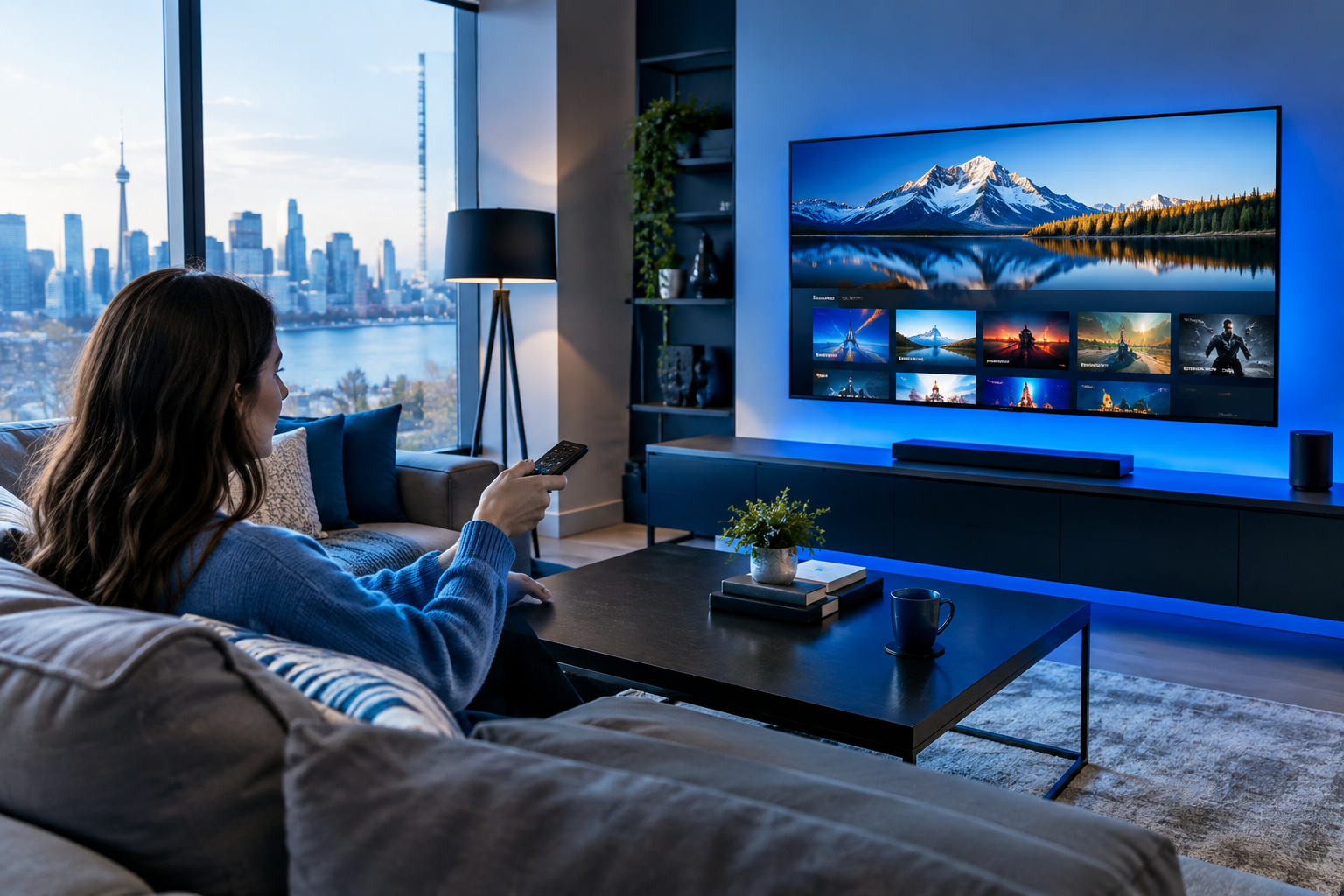
IPTV app compatibility Smart TV Canada is one of the first things to check before you try to watch IPTV on the television already sitting in your living room, basement, condo or cottage.
The good news is that a lot of newer Smart TVs can run IPTV player apps, but the experience depends on the TV brand, operating system, app store, model year and how regularly the TV still receives updates.
At Smartele IPTV Canada, we often see everyday viewers asking a simple question: “Will this work on my TV, or do I need another device?” For a Canadian-friendly starting point, you can explore IPTV Canada and then use the checklist below before installing anything.
This guide is written for regular viewers, not technicians. You do not need to know coding, networking or complicated TV settings. In most cases, you only need your TV remote, the model number, a few minutes in the app store and a clear idea of what to look for.
We will cover Samsung, LG, Google TV, Android TV, Roku TV, Hisense Vidaa, TCL, Sony Bravia and older Smart TVs in a practical Canadian context, including what to do if your TV cannot install the IPTV app you want.
How Do You Check IPTV App Compatibility on a Smart TV in Canada?
- Find your TV brand and model number in the TV settings menu, on the back label or in your purchase receipt.
- Identify the TV operating system, such as Samsung Tizen, LG webOS, Google TV, Android TV, Roku TV, Fire TV, Vidaa or another platform.
- Open the built-in app store on the TV and search for the IPTV player app you plan to use.
- Check whether the app installs directly, opens properly and allows the sign-in or playlist format your IPTV provider gives you.
- Update the TV software if the app is missing, crashing or showing an outdated version.
- Test basic playback with a sample stream or your provider’s setup details, if available, before assuming the TV is fully ready.
- Use a streaming device, such as a Fire TV Stick or Chromecast with Google TV, if your Smart TV app store is limited or unsupported.
That is the short version. If your app appears in the TV’s official app store and runs smoothly after installation, your Smart TV is likely compatible. If the app is missing, unavailable in Canada, too old, or unstable, the TV may still be usable with an external streaming device.
The important point is that “Smart TV” does not automatically mean “compatible with every IPTV app.” A television can have Netflix, YouTube and other major apps but still have a limited store for IPTV players. That is why checking compatibility before you rely on the TV is a smart move.
What IPTV App Compatibility Smart TV Canada Really Means
When people talk about IPTV app compatibility on a Smart TV, they usually mean more than simply finding an icon in the app store. True compatibility means the app can be installed, launched, updated and used comfortably on that specific TV in Canada.
For Canadian viewers, compatibility can involve several practical pieces:
- The app is available in the Canadian version of the TV’s app store.
- The TV operating system is supported by the app developer.
- The TV has enough processing power and memory to run the app smoothly.
- The remote control works well with the app menus.
- The app accepts the playlist or login method your IPTV provider uses.
- The TV still receives system updates from the manufacturer.
This is why two TVs from the same brand can behave differently. A Samsung TV from 2025 may have better app support than a Samsung TV from 2016. An LG OLED running a recent version of webOS may offer more stable player choices than an older LG set that no longer receives major updates.
Compatibility also has a regional side. Some apps are available in one country’s app store but not another. If you bought a TV while travelling or changed its region settings, the app store may not match normal Canadian availability. In most cases, keeping your TV region set to Canada is the simplest and most reliable option.
It is also worth remembering that IPTV apps are usually players. They are not always the content service itself. A player may ask for an M3U link, Xtream Codes-style login, portal URL or other setup information. Whether those options appear depends on the app and the TV platform.
Find Your Smart TV Platform Before Installing an IPTV App
The fastest way to understand IPTV app compatibility Smart TV Canada is to identify the operating system behind your television. The brand name on the front of the TV is helpful, but the platform tells you which app store you can use.
To find it, open your TV settings and look for sections such as:
- About this TV
- Device information
- Support
- Software update
- System information
- Model number
Write down the exact model number. It may look like a mix of letters and numbers. You can then search the manufacturer’s Canadian support site or check the app store directly on the TV.
In Canada, common Smart TV platforms include Samsung Tizen, LG webOS, Google TV, Android TV, Roku TV, Hisense Vidaa, Fire TV and a few brand-specific systems. Each has its own strengths and limits.
Samsung Tizen TVs and IPTV App Compatibility
Samsung Smart TVs generally run Tizen, Samsung’s own TV operating system. Many Canadian households have Samsung TVs because they are widely sold at retailers such as Best Buy, Costco, Walmart and The Brick.
On Samsung, your first check is the Apps section. Use the search function and look for the exact IPTV player name you want. If you are comparing Samsung-specific setup choices, this detailed guide to IPTV on Samsung Tizen TVs in Canada explains what tends to work differently on Tizen compared with other platforms.
Keep in mind that Samsung does not use the Google Play Store. You cannot install Android APK files directly on a normal Samsung Tizen TV. If the app is not in Samsung’s own app store, most everyday viewers are better off using an external streaming device rather than trying complicated workarounds.
- Check the Samsung Apps store first.
- Confirm your TV region is set to Canada.
- Update the TV firmware.
- Avoid assuming Android apps will install.
- Use a streaming stick if the app is unavailable.
LG webOS TVs and IPTV Player Options
LG Smart TVs usually run webOS. Like Samsung, LG has its own app store and does not use the standard Google Play Store on most models. This means app availability depends on LG’s content store and the model year of the TV.
Many LG owners enjoy a clean interface and good picture quality, but IPTV app choice can vary. If your chosen player is missing, search for similar compatible players rather than assuming the TV cannot work at all. For more brand-specific help, see this guide to compatible IPTV players on LG webOS in Canada.
When checking an LG TV, confirm that the app supports the setup format you need. Some apps accept M3U playlists. Others support portal-based setup or username-password-server style login. The app store listing may explain this, but sometimes you need to install the app and open its settings to know for sure.
- Open the LG Content Store.
- Search for the exact IPTV player name.
- Read the app description carefully.
- Check recent user reviews if available.
- Update webOS before testing playback.
Google TV and Android TV Models
Google TV and Android TV are often more flexible for IPTV apps because they connect to the Google Play Store for TV apps. You may see this platform on Sony Bravia, TCL, Hisense, Philips, Chromecast with Google TV and other devices sold in Canada.
The names can be confusing. Android TV is the older interface, while Google TV is the newer experience built on Android TV technology. For everyday use, both often have similar app compatibility, although the exact model and software version still matter.
If your TV has Google TV, search the Play Store from the TV itself, not from your phone. Some Android phone apps are not designed for televisions. A proper TV app should work with a remote, display clearly from across the room and support landscape viewing.
For Canadian viewers comparing platforms before buying a new TV or streaming device, the guide to Google TV vs Roku TV for IPTV in Canada is useful because the two systems handle app availability quite differently.
Roku TV, Hisense Vidaa and Other Smart TV Systems
Roku TV is popular because it is simple, affordable and easy to use. However, IPTV app support can be more limited than on Google TV or Fire TV devices. If your preferred IPTV player is not in the Roku Channel Store, you may not have many official options directly on the TV.
Hisense TVs can be especially confusing because they may run different systems depending on the model. Some Hisense TVs use Google TV, some use Roku TV and others use Vidaa. The brand alone is not enough. You need to check the platform.
If you own a Hisense Vidaa model, app availability is controlled through the Vidaa app store. There may be fewer IPTV player choices than on Google TV. The same idea applies to less common Smart TV systems from smaller brands.
In most cases, if the built-in app store does not show a compatible IPTV player, adding an external device is simpler than replacing the television. This can be especially helpful in guest rooms, basements, student apartments or cottages where the TV still has a good screen but weak app support.
Use the App Store Test for IPTV App Compatibility Smart TV Canada
The app store test is the most practical compatibility check because it uses your actual TV, your Canadian app store region and your real remote. You are not guessing based on a product brochure or old forum post.
Start by opening the app store on the TV. Search for the IPTV player app by its exact name. If you are not sure which app to use, search general terms such as “IPTV player,” “M3U player,” or “media player,” but be careful. Similar names do not always mean similar features.
When you find an app, look at these details before installing:
- Developer name and app description
- Supported login or playlist formats
- Last update date, if shown
- User ratings and recent reviews
- Whether there is a trial, activation or separate app fee
- Whether the app is designed for TV screens
Install the app only from the official app store for your TV platform. This is safer and easier for everyday households. After installation, open the app and check whether the menus fit properly on screen. A compatible app should not require a mouse, keyboard or complicated navigation just to reach basic settings.
If the app opens but feels slow, test after restarting the TV. Some Smart TVs keep apps running in the background, and a simple restart can clear temporary problems. You can also remove unused apps to free up space, especially on older models with limited storage.
The app store test also helps you avoid a common misunderstanding. A website might say an app supports “Smart TV,” but that phrase can be vague. It might mean Samsung only, LG only, Android TV only or certain model years. Your TV’s own app store gives you the clearest answer.
Check Login Formats Before You Assume the IPTV App Will Work
Finding an IPTV app is only part of the compatibility check. The app also needs to support the setup format you receive from your IPTV service. If the app and provider use different setup methods, you may still run into problems even though the app installed successfully.
Common setup formats include:
- M3U playlist link
- Xtream Codes-style login details
- Portal URL or MAC-based setup
- Username, password and server URL
- Electronic Program Guide, often called EPG
You do not need to understand every technical term. The practical question is simple: does the app have fields that match the information your provider gives you? If your provider gives you an M3U link, the app should support M3U. If the app asks for a portal URL only, an M3U-only setup may not fit.
Before buying an app activation or spending time troubleshooting, open the app settings and look for the setup screen. If you are unsure, contact your IPTV provider and ask which Smart TV apps and login formats they support. A clear answer can save you a lot of trial and error.
For Canadian viewers who are still choosing an app, this broader guide on selecting IPTV apps for Smart TVs in Canada can help you compare player features in plain language.
Built-In Smart TV App vs Streaming Stick: Which Is Better?
A built-in Smart TV app can be convenient because you use one remote, one home screen and no extra HDMI device. For many viewers, that is the ideal setup. However, built-in apps are not always the best long-term solution for IPTV app compatibility Smart TV Canada, especially as TVs age.
Here is a practical comparison:
- Built-in TV app: cleaner setup, no extra hardware and fewer cables.
- Built-in TV app: may have limited app choices depending on the brand.
- Streaming stick: often has wider app support and faster updates.
- Streaming stick: can be moved between TVs, cottages or rooms.
- Streaming stick: may feel faster on older Smart TVs.
- Built-in TV app: can be enough if the app is available and stable.
Think of the Smart TV as two separate parts: the screen and the computer inside it. The screen may still look excellent after eight years, but the internal app system may be outdated. A streaming stick gives that screen a newer app platform without replacing the whole television.
Popular choices in Canada include Fire TV Stick, Chromecast with Google TV and Google TV streaming boxes. Availability and features can change, so check current app support before buying. If your built-in TV app works well, there is no need to add another device. If it does not, a streaming stick is often the most sensible fix.
If your TV is several years old and you are unsure whether it is worth troubleshooting, this guide to using IPTV on older Smart TVs in Canada explains when a streaming stick makes more sense than fighting with an aging app store.
Canadian Network Checks That Affect IPTV App Performance
Sometimes viewers think they have an app compatibility problem when the real issue is Wi-Fi, internet speed or home network congestion. The app may be compatible, but playback can still buffer or freeze if the connection is weak.
Canadian homes vary widely. A downtown condo in Toronto may have fibre internet. A rural home in Alberta, Northern Ontario or the Maritimes may rely on different broadband options. A cottage connection in Muskoka, the Laurentians or Vancouver Island may be slower during busy weekends.
Before blaming the TV, check these basics:
- Run a speed test near the TV location.
- Restart your modem and router.
- Move the router closer if possible.
- Use 5 GHz Wi-Fi when the TV is nearby.
- Try Ethernet if your TV supports it.
- Pause large downloads during viewing.
Live channels such as sports, news and events are more sensitive to connection drops than on-demand content. Viewers watching hockey, football, soccer or live news from Canadian broadcasters such as CBC, CTV, Global, Citytv, TSN, Sportsnet, RDS or TVA Sports may notice interruptions more quickly because live viewing has less room to buffer ahead. This is a general viewing observation and does not imply that any IPTV service is affiliated with or carries those channels.
In most cases, a stable wired connection or strong Wi-Fi signal improves the experience more than changing random app settings. If the app launches and menus work but streams struggle, test the same app on another device on the same network. That can help you separate app compatibility from network performance.
Common Mistakes to Avoid
A lot of viewers run into avoidable problems because Smart TV app support is not always obvious. The good news is that most mistakes are easy to avoid once you know what to check.
- Assuming every Smart TV supports every IPTV app. App stores vary by brand, country and model year.
- Buying an app activation before testing installation. Install and open the app first whenever possible.
- Ignoring the TV operating system. Samsung Tizen, LG webOS, Roku TV and Google TV are very different.
- Using instructions for the wrong platform. Android TV steps will not usually apply to Samsung Tizen or LG webOS.
- Forgetting software updates. An update can fix app store or playback issues.
- Blaming IPTV immediately for Wi-Fi problems. Test the network before changing services.
- Trying risky unofficial downloads. Official app stores are safer for most Canadian households.
Another common mistake is relying on the TV box or marketing label alone. A television may say “Smart TV” in large letters, but that does not reveal whether it has the IPTV app you need. Always check the app store directly.
It is also wise not to overcomplicate things. If your Smart TV app store is limited, a streaming device may solve the problem faster than hours of searching for hidden settings. Sometimes the simplest option is the most reliable one.
What to Do If Your Smart TV Does Not Support the IPTV App
If your Smart TV does not support the IPTV app you want, do not panic. It does not automatically mean your television is useless or that you need to buy a new one. In many homes, the screen is perfectly fine while the app platform is the weak point.
Your main options are:
- Try another IPTV player available in your TV’s app store.
- Update the TV and search again.
- Confirm the TV region is set to Canada.
- Use a streaming stick or box through HDMI.
- Ask your IPTV provider which apps they recommend.
- Use a newer Smart TV in another room if available.
A streaming device is often the most practical choice because it gives you a newer operating system and a dedicated app store. It can also be replaced later at a lower cost than a full television. For families, renters and students, that flexibility matters.
If you already own a Chromecast with Google TV, it may be a strong alternative to the built-in app store on a limited Smart TV. This Canadian setup guide for Chromecast with Google TV for IPTV explains the basic setup considerations.
Before buying anything, check your TV’s HDMI ports and power outlet access. Most streaming sticks need an HDMI port and power through USB or a wall adapter. Also confirm that your internet connection reaches the device location.
FAQ
How do I know if my Smart TV supports an IPTV app?
Open your TV’s built-in app store and search for the IPTV player app you want to use. If the app appears, installs, opens and supports your provider’s setup format, your TV is likely compatible. Also check your TV model, operating system and software updates.
Does IPTV app compatibility Smart TV Canada depend on the TV brand?
Yes. Brand and operating system matter a lot. Samsung Tizen, LG webOS, Google TV, Android TV, Roku TV and Vidaa all have different app stores. Two Smart TVs can look similar in the store but support very different IPTV player apps.
Can I install Android IPTV apps on Samsung or LG Smart TVs?
In most cases, no. Samsung Tizen and LG webOS do not normally install Android APK files like an Android TV or Google TV device. You should use the official Samsung or LG app store, or connect a compatible streaming device if the app is unavailable.
Is a streaming stick better than using the IPTV app on my Smart TV?
It depends. If your Smart TV has a stable, supported IPTV app, the built-in option may be perfectly convenient. If the app store is limited, the TV is older or performance is slow, a Fire TV Stick, Chromecast with Google TV or similar device may be easier.
Do I need a new TV if my IPTV app is not available?
Usually not. In most cases, you can keep the same television and add an external streaming device through HDMI. This is often cheaper and simpler than replacing a TV that still has a good picture but outdated app support.
Final Thoughts
Checking IPTV app compatibility Smart TV Canada does not have to be stressful. Start with the basics: identify your TV platform, search the official app store, confirm the app supports your login format, update the TV and test playback before making bigger decisions. If your Smart TV is limited, the good news is that an affordable streaming device can often give your existing screen a fresh start. When you are ready to explore your viewing options with calm, practical guidance, Smartele IPTV Canada is here to help you make a confident choice.